
Revit 2027 reworked rebar. So what does REBO do?
In Revit 2027, released in April 2026, and its later updates, Autodesk strengthened the tools for placing rebar in 3D and added automatic rebar weight calculation. Placing rebar inside Revit is being filled in quickly by built-in features and add-ins. What is still left to people is deciding where and how to splice, and by which standard to set development, cover and order lengths. REBO makes these decisions inside Revit using Korean standards (KCI, KSEA), then passes the resulting quantity sheet to RV for revision comparison and building up the company's track record.
Published October 23, 2026·Last checked · October 2026
Key points
- The Revit 2027 rebar features are not announcements; they have shipped. They include 3D path distribution, spacing formulas, longitudinal bars that follow the shape of ties, free-form splicing for bridges and tunnels, and automatic rebar weight calculation
- REBO v1.0 was released on October 20, 2026. On a real building (778 members) it placed 67,360 bars in about 9 minutes (internal measurement). The bars come out as a Revit 3D model with splice, development, cover and order-length decisions already made
1What changed for rebar in Revit 2027
These are the rebar items listed in Autodesk's official "What's New in Revit 2027" documentation. All of them have shipped; none of the rebar items is marked as a Tech Preview.
| Release | Item | Gist of the official description |
|---|---|---|
| 2027 | 3D Path Rebar Shape Distribution | Distribute ties and stirrups along a 3D path in doubly curved concrete members |
| 2027 | Enhanced Spacing Layout for Rebar | Define spacing that mixes fixed, variable and proportional values in a single formula (from a user idea) |
| 2027 | Longitudinal Bars Driven by Transverse Rebar | Longitudinal bars follow the shape of ties and spirals and update automatically when the shape changes |
| 2027 | Longitudinal Free Form Rebar Splicing | Improved free-form longitudinal bar splicing for bridges and tunnels |
| 2027 | Easy Rebar Weight Calculation | Rebar weight shown automatically in properties, schedules and tags (from a user idea) |
| 2027 | Concrete Detailing Ribbon | Cast-in-place and precast rebar tools gathered on one ribbon tab |
| 2027.1 | Place Standard Rebar Shapes in 3D Views | Place standard rebar shapes directly in 3D views |
| 2027.2 | Presentation Options for Spliced Rebar Sets | Display control for spliced rebar sets |
The Autodesk blog describes this as "when the host member changes, the rebar changes with it, and placement, splicing and spacing update automatically according to rules." Rebar that follows its host when the member changes, and copying rebar to similar members (Propagate Rebar, 2023), already existed. 2027 extends what follows to curved members and to longitudinal bars that follow ties. The "rules" here are the spacing formulas and splice rules the user enters. The release materials do not say that splice positions or development lengths are decided according to any country's reinforcement standard. Splicing has been in Revit since the 2025 version, and the lap length is either entered directly by the user or set as a user-defined multiple of the bar diameter.
This is also what users have long asked for. "Automatic rebar splitting", posted on Revit Ideas in 2017, received 86 votes and is now marked "Implemented". Its author wrote that "lap splice lengths differ for every bar diameter" and that splitting splices by hand took two weeks. On "Rebar automation like steel connections" (2022), a comment reads that "automation in precast and rebar has not progressed as much as hoped." Right after 2027 shipped, a post on Reddit r/Revit was titled "WOWOW FINALLY AUTODESK LOOKED AT THE REBAR".
2How far have rebar tools inside Revit come
This article looks only at the options for teams that use Revit. Standalone BIM platforms such as Tekla and ALLPLAN handle everything from modeling to fabrication data within their own ecosystems, so they are left out of the comparison. Below is what we confirmed from official pages for Revit's built-in features and for add-ins that run on Revit.
| Product | Type | Rebar creation | Standards and settings | Quantities and fabrication data |
|---|---|---|---|---|
| Revit 2027 built-in (Autodesk) | Revit | Placement by shape, path and spacing; rebar updates when the member shape changes | Lap length set by the user in the type | Automatic rebar weight, schedules |
| SOFiSTiK Reinforcement | Revit add-in | 3D rebar modeling tools | Country list not confirmed on public pages | 2D reinforcement drawings from 3D rebar |
| PowerPack Rebar (GRAITEC) | Revit add-in | Automatic rebar cages for slabs, walls, beams, columns and foundations, based on FEM results | Promotes compliance with US and European standards | Promotes automated drawings, documentation and schedules |
| Naviate Rebar (Symetri) | Revit add-in | Automatic rebar for beams, columns and walls from predefined settings, applied to many members at once | Reads the project's rebar types, shape codes and cover settings | Not confirmed on public pages |
| REBO (ChangSoft Global) | Revit add-in (2026, 2027) | Columns, beams, walls, slabs and foundations across the whole structural model in one run | Decides splice position and type, development, cover and order length by KCI and KSEA | Quantities recalculated as soon as reinforcement is finalized; Revit schedules; quantity sheet goes to RV |
Inside Revit, Autodesk keeps strengthening the placement tools, while add-ins take on settings-based batch creation and drawings. The standards add-ins promote in their public materials are mostly European and US. We found no Revit add-in that states in public materials that it has Korean reinforcement standards (KCI, KSEA) built in.
3Placing the bars versus setting the conditions
Rebar automation has two layers. One is Auto-placing: creating rebar and putting it in 3D space. Most of the products in the table above work in this area. The other is Auto Configuration: deciding splice position, length and type, development method, cover thickness and order length according to the conditions.
Auto Configuration — what REBO does by KCI and KSEA
Auto-placing — what Revit's built-in features and most add-ins do
Auto Configuration is not finished just by loading a code. Even under the same standard, which zone to stagger splices in and what length to cut stock bars to for ordering are judgments that mix site practice and experience. If those judgments stay in people's hands, the results change every time the person in charge changes, and the difference stays in the quantity sheet.
4What REBO does
REBO reads a Revit structural model, recognizes columns, beams, walls, slabs and foundations, and creates rebar according to KCI and KSEA. It does not stop at placing bars: it decides splice position and splice type, development, cover and order length according to the conditions. Once reinforcement is finalized, rebar quantities are recalculated straight away, and the results can be checked in Revit schedules. Each bar keeps its shape, length and quantity as Revit properties.
On a real building, reading 778 members and creating 67,360 bars took 9 minutes 13 seconds (internal measurement, including writing to the Revit model). Everything happens in Revit, with no switching between tools.
Foundation slab
0:38
2,046 bars
Column
0:15
1,068 bars
Wall
3:09
48,680 bars
Beam
1:39
5,002 bars
Slab
3:19
7,846 bars
Stair
0:11
2,718 bars
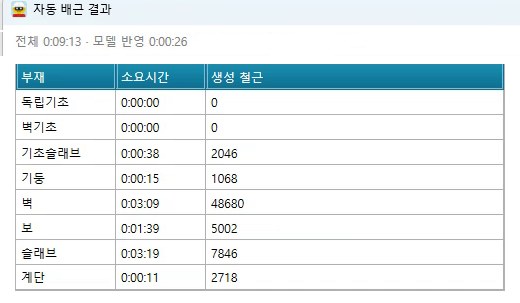
REBO was developed from scratch on Revit. The decision logic draws on the know-how of ChangSoft Global engineers who have planned and developed automatic reinforcement software for nearly 20 years.
5After REBO comes RV: review from the same quantity sheet
Revit 2027 puts rebar weight into schedules automatically. Add-ins also promote automated schedules and drawings. What public materials describe stops at schedules inside the model. In practice, quantities become an issue after that. When the design moves from R01 to R02, you have to answer which member's rebar increased and why, and whether this job is heavier or lighter than similar buildings the company has done.
RV is ChangSoft Global's web service: drag and drop the quantity sheets REBO produces, and they build up as your company's structural track record. Using REBO and RV together makes the following possible.
5.1See design changes member by member
Compare up to four revisions side by side in 3D. Additions show in green, changes in orange and deletions in red. Differences are calculated automatically from the total down to floor, member and member ID. Cases where the concrete shape is unchanged but only the rebar changed are flagged separately as "reinforcement condition change". Pick an item in the change list and the 3D view highlights that member; pick a member in 3D and it is found in the list.
5.2Change history stays as numbers
Concrete, formwork and rebar trends build up per revision as graphs, with the reason for each change recorded. Quantity comparison reports go straight out as Word or PDF. Even when staff change, the record of how the quantities reached today's values remains.
5.3Company baseline and reconciliation with 2D takeoff
Projects of the same use and structural type are grouped and member medians are shown, so you can see at once how far a new project departs from the company baseline. Put an estimator's 2D takeoff and the BIM quantities in the same table and the differences come out from the total down to member and floor; attach a reason to each line and issue it as a reconciliation report.
Because quantity sheets judged by REBO with the same rules build up, differences between revisions can be read as "differences caused by design changes", not "differences caused by different rules". Source files are not uploaded: quantity sheets are parsed in the browser and only numeric records are stored. RV is currently in beta and free until November 30, 2026.
6What works now and what comes in later versions
| Version | Timing | Scope |
|---|---|---|
| v1.0 · now | Released October 2026 | Automatic reinforcement of main members: columns, beams, walls, slabs, foundations Auto Configuration: splice position and type, development, cover, order length Quantities recalculated as soon as reinforcement is finalized Reinforcement standards: KCI, KSEA Supports Revit 2026 and 2027 |
| v2.0 | 2027 (planned) | More member types Detailed settings for splices, development and cover |
| v3.0 | 2028 (planned) | Automatic shop drawings Link to fabrication and ordering ACI and Eurocode standards |
v1.0 does not replace shop drawings. Drawings are planned for v3.0. Overseas standards (ACI, Eurocode) are also on the roadmap. v2.0 and v3.0 are plans, and the schedule may change.
7Summary
With Revit 2027, the tools for placing rebar have improved further. Revit add-ins are also expanding settings-based creation and drawings. The questions left on Korean sites are who decides splices, development, cover and order lengths to KCI and KSEA, and how, and how to compare the resulting quantities across revisions and projects. REBO handles the first question inside Revit, and RV handles the second with the same quantity sheet. With a two-week trial, you can try it on your own Revit structural model. Product details are on the REBO product page.
Sources
- What's New in Revit 2027 (2027, 2027.1 and 2027.2 release items; checked 2026-10-23)Autodesk (official)
- What's New in Revit 2027: A Smarter, More Connected Way to Work (Cesar Escalante, 2026-04-07)Autodesk AEC blog (official)
- Essential Techniques and Best Practices for Rebar Detailing Using Revit (BES3516), class handoutAutodesk University 2025 (official)
- automatic rebar splitting (2017-04-21)Autodesk Revit Ideas (community)
- Rebar automation like steel connections (2022-09-26)Autodesk Revit Ideas (community)
- WOWOW FINALLY AUTODESK LOOKED AT THE REBAR (2026)Reddit r/Revit (community)
- Reinforcement product pageSOFiSTiK (official)
- PowerPack Rebar Design & Detailing for RevitGRAITEC (official)
- Autodesk University 2026 session informationGRAITEC (official)
- Naviate RebarNaviate (official)
This article is a summary compiled from published material. It is not a legal interpretation and does not constitute advice. Regulation changes frequently, so please check the original documents and the latest notices from the responsible authority before relying on it in practice.